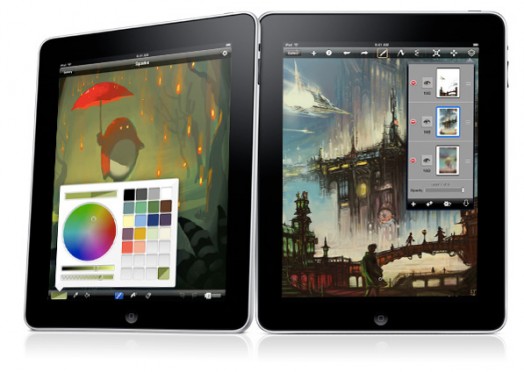
Drawing on the iPad, a Brushes & Sketchbook Pro Walkthrough
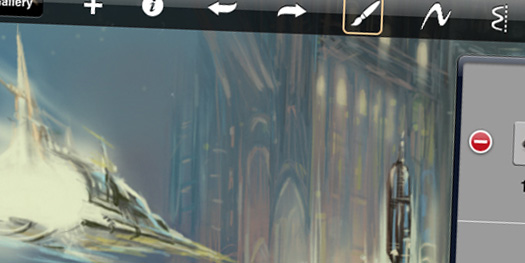
After getting an iPad, I couldn’t wait to get my hands on Brushes and Sketchbook Pro. Both of these apps are really nice on the iPod and iPhone, but I had not taken to them like I had hoped. I found that the screen size was crippling for me and this was too great a hurdle for me to overcome. The iPad is a much better tool for drawing since the size is closer to the size of a sketch book. The iPad also has more room to include app menus and options.
I am a little torn as to which app I like better. I feel like the menus for Brushes are a little more intuitive and easier to use. I also like the workflow better in some instances – color sampling, adding a photo and the play back feature is really cool. I also forgot to show the awesome layer blend modes in the Brushes video. Sketchbook Pro on the other hand, has some more detailed options and offers more control of the brush. I really like this brush control, the deep zoom, and the option to save files as a layered Photoshop document. I feel like you can’t go wrong with either app. They are both really amazing and great drawing tools.
I am also going to pick up a pogo stylus for drawing. While I already love the feel of drawing on this device, I think this will give me the feel of “real” drawing.
So, we are almost two weeks out from the release of the iPad and already we have some amazing drawing applications. The future for art on the iPad is bright and I can’t wait to see where it goes. Hopefully, Brushes and Sketchbook Pro on the iPad will get me sketching more often. I have already sketched more in 2010 than I did in 2009, which sadly isn’t saying much. Please share any other drawing apps that rival these.
Brushes
I apologize in advance for the lame factor in the video. I will either get better, or get someone else to do these in the future.
Features:
- High-quality brushes (with an erase mode)
- Up to 6 Layers (768×1024): reorder, merge, and adjust transparency
- Layer Blend Modes: Normal, Multiply, Screen, Overlay, and Color
- Desktop-class color picker (including swatches)
- Extremely responsive zooming from 50% to 3200%
- Eyedropper tool
- Generous level of undo and redo
- In-app replay of your paintings
- High resolution export with Brushes Viewer on Mac OS X (http://brushesapp.com/viewer)
- Import photos to your canvas
- Upload your paintings directly to Flickr
Price: $9.99 – Buy on iTunes
Sketchbook Pro
I apologize in advance for the lame factor in the video. I will either get better, or get someone else to do these in the future.
Features:
- Canvas size: 1024 x 768
- Two finger pan & zoom navigation with 2500% zoom
- Three finger tap for controls
- Three finger swipe gestures for quick access
- 75 preset brushes, including pencils, pens, markers, natural media and photo brushes
- Flood fill and smear tool
- Completely customizable brush settings for each brush
- Draw styles for creating straight lines, rectangles, and circles
- Synthetic pressure sensitivity (brush fade-off)
- 10 levels of undo and redo (Quick Access: three finger swipe left and right)
- 6 Layers allowing ease of editing and control
- Import layers from Photo Library
- Export to Photo Library
- E-mail images
- Export as a layered PSD file
- Eye-dropper color selection
- Erase color chip to convert any brush into custom eraser
Price: $7.99 – Buy on iTunes
Today in Art - Apr 16, 2010 | artist resources, digital, drawing
Tagged | artist resources, digital, drawing, graphic design, ipad


20 comments
susan murtaugh
April 16, 2010There is no picture on SketchBook Mobile video
Rainey
April 16, 2010Thanks for the heads up! I am uploading a new one now. I guess something went wrong in the previous upload.
Rainey
April 16, 2010Okay, the second video is now working again.
al
April 30, 2010nice demonstration. i just got an ipad, and i’m exciting about using it as an alternative to the bamboo drawing tablet. now I see how these programs work. i think i’m leaning toward the brushes app. i wonder which app do you end up liking more.
Rainey
May 5, 2010I like the feel of brushes more, but do enjoy the extra brush controls of sketchbook pro. The good thing is they are at a price point where it is affordable to have both.
Sarah Graham
May 14, 2010i am planning to buy an iPad since it looks lighter than a regular desknote and i don not use much of the features of a laptop.
Kris
June 6, 2010Hey.. Before I purchase any if these apps,
Quick Question… Can you upload a photo first and draw over it???
Rainey
June 7, 2010@ Kris, yes you can.
Alice W
June 19, 2010I’ve been trying to get more of a handle on how Brushes works (I have Sketchbook Pro and ArtStudio), and this really helps me get a sense of the app. Thanks!
No “lame factor” at all!
Rainey
June 21, 2010I certainly appreciate that, thanks!
Terry Ribera
June 21, 2010I am a long time user of photoshop. I’ve only recently taken up digital painting in photoshop two years ago. I own a Wacomb Cintique. I just recently purchased an I Pad with sketch book pro. What I like about it is that I actually enjoy the brushes more than most of the photoshop brushes. I feel that the brushes move in a cleaner way with less of a wobble. In general it is more comfortable to draw with. I like the simple interface and how quick you can pull up the brush controls, the interface between canvas and brushes is faster and more user friendly than photoshop or corel painter. I have sketch book on my I Pad. I thought to buy it as a mobile version of a wacomb. It is not as sensative as my wacomb cintique, but the “artificial” pressure works rather well and has a reasonably natural feel. I honestly prefer drawing with it over photoshop.
However the cons are, that the multiplied layers in Sketch Book Pro do not work as they should. When I make a multiplied layer in photoshop it is a true transparent image, some how sketch book pro only understands areas not painted as transparent, so opaque colors show up. Which is not ideal as I paint in gray scale and than convert the image to a burnt umber type color and I like to multiply my layers so I can color the image in under layers and over layers. It’s more like a wash technique. This is my preferred method and it is for many and in photoshop that is how I normally work. There is also no color balance, selective color control, dodge and burn, things that would be extremely useful tools. Of coarse I can’t stress how important the multiplied layers should work vs. how they do work. It would also be nice to chose your canvas size and resolution.
I think it is a great carry along tool, it draws nicely and feels very real. I highly recommend buying a pogo or dagi stylus to draw with rather than your finger. It really helps a lot. I would definitely pick it up if you own an iPad. Ultimatley I like drawing with this more than photoshop. However to finish the project I would rather bring it home in photoshop. Not to say that you couldn’t do it this program, just knowing the two platforms makes me lean toward wanting to work in both. However for $7.99 you really can’t beat it and you can take it with you anywhere.
here is a link to my first sketch done in the program.
Terry Ribera
June 21, 2010http://www.flickr.com/photos/23253186@N03/4720650501/sizes/o/
oops, here is the link.
Rainey
June 25, 2010Thanks for sharing your experiences Terry! For some reason the system flagged the link to your drawing but I just approved it. Nice drawing!
Faith Simmons
July 23, 2010my girlfriend is going to give me an ipad on my birthday this month.
lillican
August 7, 2010Wondershare iDraft is gorgeous, and so are the notes or drawings you scrawl on it. The speed of your finger tracing across the pad of paper shows in the thickness of the ink. I love the presentation of the content/intro page, which is clean and simple (I love the chalkboard sketches of the pencil and trash can). Nothing distracts you from the tools and the blank note paper. The tools are very easy to access, very easy to select what you want, and I love that there’s both an eraser and undo/redo buttons.
App Store link: http://itunes.apple.com/app/wondershare-idraft/id379174209?mt=8
sony
August 11, 2010I am using Wondershare to draw and take notes with my iPad. It is great.
Mike
December 10, 2010I love sketchbook pro on the iPad but I find the resolution on all of these apps to be almost useless. It’s a cool app for practice… But without a higher resolution output you can’t do much with the images in a professional setting. I’ve been hounding the developers (on the forums) to please update this. If you have a moment please do the same and let’s make this a useful app for artists!
Rainey
December 13, 2010Agreed, the resolution does need to be much higher. Maybe we will start seeing this with the next iPad.
Roo
April 1, 2011I’m a complete weaboo when it comes to iPad applications so I need to ask a few things, I hope you don’t mind. I’ve been reading the comments down here and I’ve seen a certain “problem” about resolution and canvas size options. So when you save the picture, it can only save in a default size? Like, for example, 800×600 only? Something like that? And what about the resolution? How does that affect the output of the image you’re drawing?
Thank you in advance!
Rainey
April 4, 2011Right, this is one thing that is keeping it from being a serious tool. Applications like Photoshop on a computer allow you to create images much larger than the screen you are looking viewing from. These apps are going to keep you as 1024×768 pixels. In print this is up to about 7 inches wide, depending on how fine you want to set your resolution.
This limitation could be a memory issue and the problem may be resolved in future releases. In my opinion, both of these apps are great and perform extremely well for the price.
Thanks for the question!
1 Trackback
[...] I posted Drawing on the iPad, a Brushes & Sketchbook Pro Walkthrough it was 2 weeks after the Apple iPad launch and drawings from digital artists were scarce. Now, 6 [...]